Microsoft Foundation Classes applications
This article demonstrates the main aspects involved to building Windows applications with MVS using MFC (Microsoft Foundation Classes). Many of the ideas are demonstrated through the accompanying Sketcher Demo.
Setup
Building a demo application similar to that with the Windows API example is much simpler, so much so that the code is given below. Readers will notice a few areas that overlap from the lower level Windows API approach.
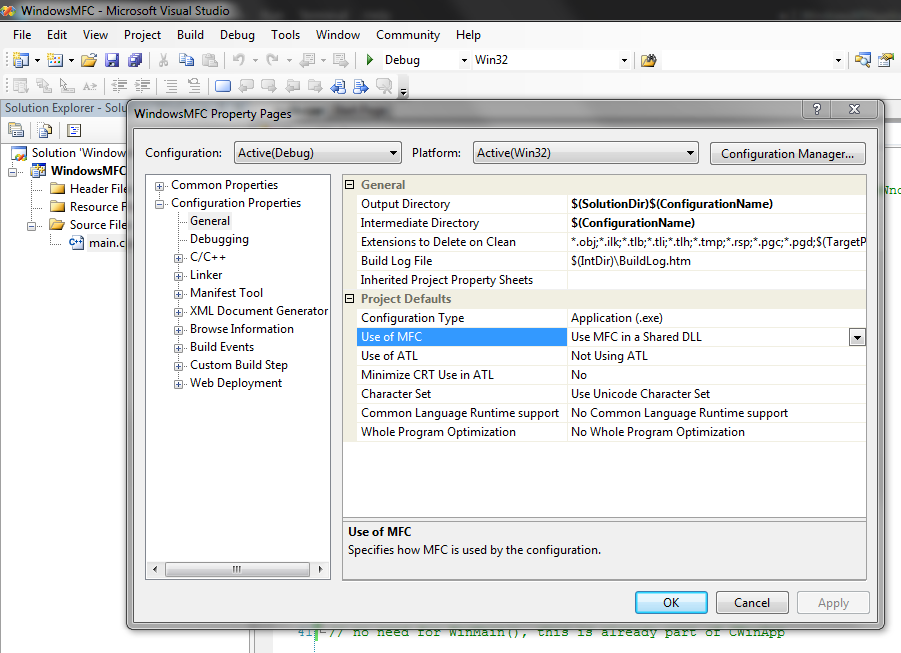
Note that this demo was built as an empty Win32 project, while also enabling Use MFC in a Shared DLL found under the project’s Configuration Properties.
// MFC classes
#include <afxwin.h>

// convention for MFC projects to precede class names
// with C and data members with m_

// All MFC applications are based on CWinApp
class CDemoApp: public CWinApp
{
public:
	// this will be called by WinMain automatically
	virtual BOOL InitInstance();
};

// windows in MFC are referred to as frame windows, defined by CFrameWnd
class CDemoWindow: public CFrameWnd
{
public:
	CDemoWindow(){
		Create(
			0,		// use the CFrameWnd defaults
			L"Demo MFC Application");
	}
};

BOOL CDemoApp::InitInstance(void){
	m_pMainWnd = new CDemoWindow;

	// key point that links the App (CDemoApp) to
	// an MFC frame window (CDemoWindow); m_pMainWnd
	// is freed up automatically by WinMain()
	m_pMainWnd->ShowWindow(m_nCmdShow);
	return TRUE;
}


// have to build a global instance of the app before
// WinMain() runs (it assumes an instance exists)
CDemoApp AnInstance;

// no need for WinMain(), this is already part of CWinApp
MFC documents, views and document templates
Documents and Views
MFC applications manage documents and views. A document refers to the data the application handles at a given time and a view refers to the how the document is presented to the user. The window in which the view appears is called the frame window. Each view can only be related to one document (via pointers) whereas each document can be related to multiple views (again, via pointers).
Documents are defined as derived classes of CDocument whereas views are defined as derived classes of CView.
MFC applications can handle one document at a time as SDI applications, supported by the Single Document Interface of the MFC library. Applications that need to support multiple documents (of varying types if needed) at a time are built as MDI applicaitons using the Multiple Document Interface.
Document templates
The connection between a document, a view and frame windows is managed by a document template. The document template can be assigned to multiple documents of the same type. Technically, the document template (an MFC object) creates document and frame window objects, while the frame window object creates the views. The document template object is subordinate to the application.
- Application creates…
- Document template creates…
- Document
- Frame window creates…
- View
- Document template creates…
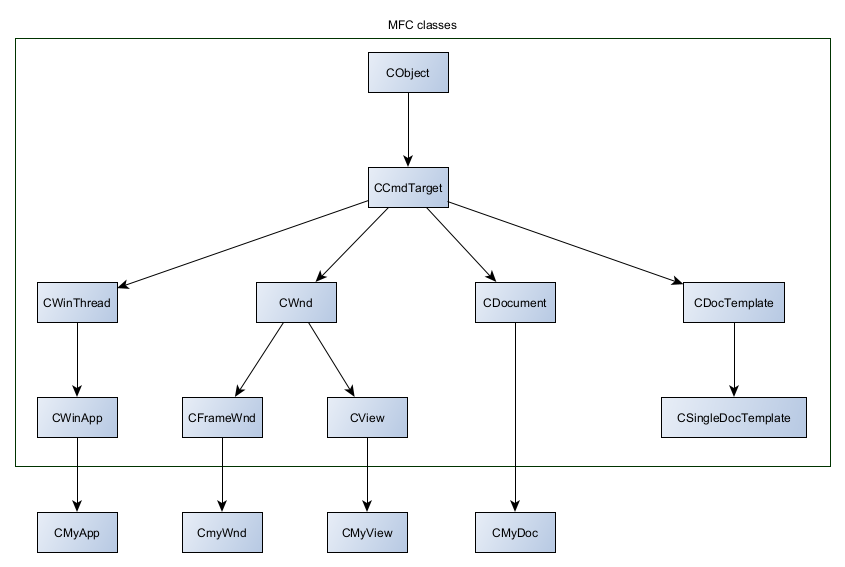
Technically, SDI applications are implemented as derived classes of CSingleDocTemplate while MDI applications are implemented from CMultiDocTemplate. More classes are shown below:
Communicating with Windows via messages
Message Maps
As already mentiond, applications communicate with Windows via messages. The association between an application function and a message is managed via a message map. When a given message occurs, the corresponding member function (referred to as a message handler) is called.
Each MFC application class that can handle Windows messages will have a message map. The start and end of a message map is denoted by macro:
// note the lack of semi-colon: these are not typical member function protoypes/declarations
BEGIN_MESSAGE_MAP()
// message handlers
END_MESSAGE_MAP()
It is possible to declare message handlers outside of message maps; such handlers are distinguished from other member functions with afx_msg prefix:
class SomeClass : public WinApp
{
	public:
		SomeClass();

	// Overrides
	public:
		virtual BOOL InitInstance();

		afx_msg void OnAppAbout();
		// this macro indicates that SomeClass can contain
		// member functions that are message handlers;
		// note the lack of semi-colon (it's best to declare this last)
		DECLARE_MESSAGE_MAP()
}
Below is an example of a message map:
// the first parameter identifies the current class for which
// this message map is defined; the second parameter identifies the
// base class from which the message handler can find the message handler
// if it can't find it in the current class
BEGIN_MESSAGE_MAP(CSketcherApp, CWinApp)
	ON_COMMAND(ID_APP_ABOUT, &CSketcherApp::OnAppAbout)
	// Standard file based document commands
	ON_COMMAND(ID_FILE_NEW, &CWinApp::OnFileNew)
	ON_COMMAND(ID_FILE_OPEN, &CWinApp::OnFileOpen)
	// Standard print setup command
	ON_COMMAND(ID_FILE_PRINT_SETUP, &CWinApp::OnFilePrintSetup)
END_MESSAGE_MAP()
The message handler given above are command messages (message types are covered shortly), which are generated by the user e.g. a menu option selection.
// when a command message identified as ID_APP_ABOUT
// is received, the member function (message handler) OnAppAbout is called
ON_COMMAND(ID_APP_ABOUT, &CSketcherApp::OnAppAbout)
Messages should not be mapped to more than one message handler; otherwise all latter message handlers will be ignored (the first macro declaration is the only macro applied).
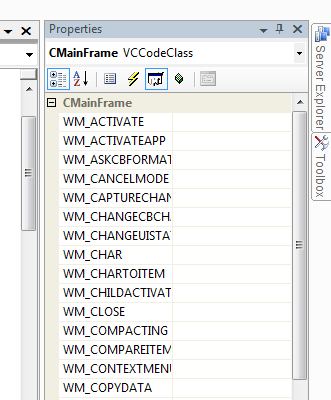
To list all messages for a given class, in Class View, right-click the class, select Properties then click the “Messages” button (the following example is based on a typical CMainFrame class):
Types of messages
- Windows messages: standard Windows messages, prefixed with
WM_but notWM_COMMAND(!). Examples include the need to repaint the client area, or when a mouse button has been released. Always handled by objects derived fromCWnd(see below). - Control notification messages: messages originating from controls (e.g. list boxes) to the parent windows that created the control, or from child window to parent window; prefixed with
WM_COMMAND. Always handled by objects derived fromCWnd(see below). - Command messages: messages orginating from the user (e.g. from interacting with UI elements) characterised by unqiue identifiers; also prefixed with
WM_COMMAND.
Much of the functionality of an MFC application involves writing message handlers for all three above types.
MFC classes so far
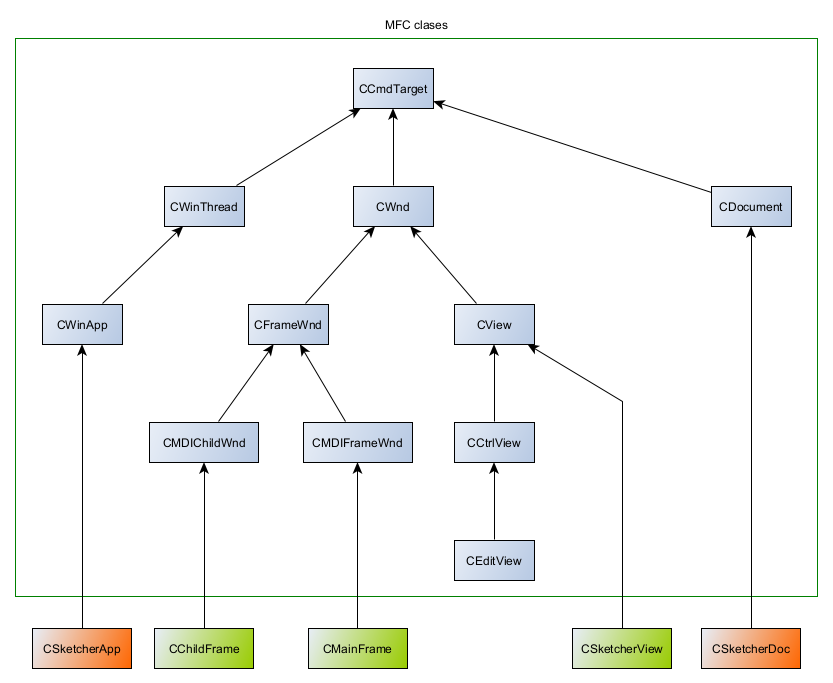
MFC applications generated by the MFC Application wizard construct classes derived from CCmdTarget, which as shown is an indirect parent to CWinApp. The latter class is the parent class to the above CSketcherApp class, which in this example represents the main application class of the MDI application.
A summary of the Sketcher app (demo) classes:
CSketcherApp(fromCWinApp) - the main application classCMainFrame(fromCMDIFrameWnd) - defines the parent frame windowCSketcherView(fromCView) - defines a viewCSketcherDoc(fromCDocument) - defines a documentCChildFrame(fromCMDIChildWnd) - defines a child frame window (reside within the parent frame window)
Command messages are processed in a predefined order, where it moves from one (MFC application) class to another until a message handler is found (defined), before finally resorting to the main frame window class (the parent window class) and finally the application class.
For MDI applications, the sequence would be:
- The active View object
- The Document object associated with the active view
- The Document Template object for the active document
- The (child) Frame window for the active view
- The main Frame window object
- The Application object
Resources
Resources files (extension .rc) define the look of application components e.g. menus, toolbars and dialogs. The code to the events are handled separately via event handlers.
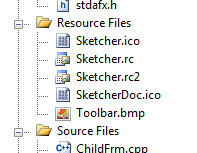
Double clicking an rc file opens the Resource View:
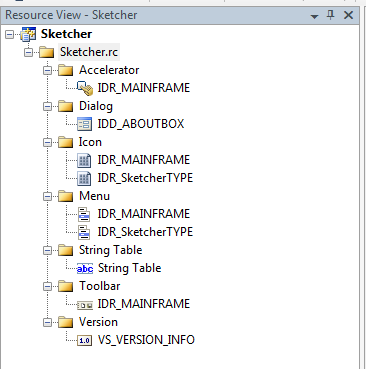
In this example, resources prefixed with “IDR_” identify resources that define a complete menu.
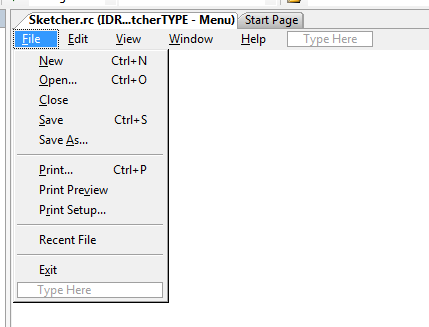
Double clicking IDR_SketcherTYPE opens an Editor:
Graphic Device Interface (GDI)
Drawing in a window is always relative to the top-left corner of the window. Windows can draw on screen when it knows the position of the window and the position relative to the top-left corner reference point.
The output is handled without regard to the hardware available via the Windows Graphical Device Interface (GDI). The GDI supports display screens, printers and plotters.
To render something, Windows requires a device context, a Windows data structure that translates GDI function calls into physical device actions. The device context handles different mapping modes (coordinate systems), drawing attributes (drawing colour, background colour, line thickness and so on) as well as providing access to hardware information, via GDI functions.
Mapping modes
Mappings modes are denoted by convention with the MM- prefix. For example MM_TEXT (the default mapping mode) defines a pixel position from left to right as having increasing positive x values, and a position from top to bottom as having increasing positive y values. So in relation to the top-left corner of a window, all points in the window have positive x- and y-values.
When drawing on a monitor with a higher-resolution, a coordinate (10,20) (that is, 10 pixels to the right, 20 pixels down) will appear closer to the top-left corner, than on a monitor with a lower resolution. The coordinates are (after Windows 98) always given as 32-bit signed integers. It is possible to move the origin (0,0) from the top-left corner, and so have pixels with negative coordinates.
Another mapping mode, MM_LOENGLISH is more familiar to geometric coordinate systems: an increasing x value places the point by multiples of 0.01 inch (MM_TEXT uses pixels as a metric) further to the right and n increasing postive y value places the point further up the coordindate system.
Choosing pixels or lengths as a unit of measure results in different output. Pixel unit values are dependent on the resolution and whereas unit length in inches is not dependent on the resolution.
MFC and drawing with CDC objects
Drawing with MFC applications is mostly defined by child classes to CView, and the function of interest whenever the client area needs to be redrawn is OnDraw(). In relation to the above demo, the OnDraw() function is set out by the application wizard:
// CSketcherView drawing

void CSketcherView::OnDraw(CDC* /*pDC*/)
{
	CSketcherDoc* pDoc = GetDocument();
	ASSERT_VALID(pDoc);
	if (!pDoc)
		return;

	// TODO: add draw code for native data here
}
The commented out pointer parameter (needs reinstating prior to use) can be read as “pointter-to-Device-Context”. The function GetDocument() retrieves and casts the current View object data member, and sets up the pointer to the document defined by the programmer i.e. CSketcherDoc. This is how MFC documents are related to one or more MFC views.
Key to drawing in MFC applications is the CDC class (an MFC class for Device Contexts), and its derivatives. Instances of CDC classes contain a device context and member functions (well over 100) needed to draw on devices. The particular derived class of CDC which is used to handle client areas is CClientDC.
Demonstrating how to chang coordinates for a moment, one modifies OnDraw(). OnDraw() is called each time the client needs to be redaw, typically when the window or child frame is moved, minimised or maximised:
// CSketcherView drawing

void CSketcherView::OnDraw(CDC* *pDC)
{
	CSketcherDoc* pDoc = GetDocument();
	ASSERT_VALID(pDoc);
	if (!pDoc)
		return;

	// uses CDC member functions
	pDC->MoveTo(50, 50);

	// alternatively, with older Windows API POINT structure:
	pDC->MoveTo(pointInstance);
}
The function MoveTo() returns the original coordinates, in the event they are needed (they would be lost otherwise).
Drawing lines
Instead of just moving from one point to another with MoveTo(), applications can draw lines with LineTo().
// uses CDC member functions
pDC->LineTo(50, 50);

// alternatively, with older Windows API POINT structure:
pDC->LineTo(pointInstance);
The function LineTo() returns TRUE is drawn and FALSE if not.
Drawing rectangles
When used in combination, the program can change coordinates to some point inside the client area and then draw shapes e.g. as a rectangle
pDC->MoveTo(50, 50);
pDC->LineTo(50, 200); 	// draw a line 150 pixels down (in MM_TEXT)
pDC->LineTo(150, 200);  // draw another line 100 pixels to the left (in MM_TEXT)
pDC->LineTo(150, 50);  	// draw another line 150 pixels up (in MM_TEXT)
pDC->LineTo(50, 50);	// draw another line 100 pixels to the right (in MM_TEXT)
Drawing ellipses, circles and arcs
One can use the CDC method Ellipse() to draw (closed) ellipses or circles. This requires an additional brush object, which in part defines the colour of the edge and fill of the ellipse.
Perhaps a more flexible alternative is the CDC Arc() function as this allows one to draw ellipse or circle segments (i.e. an arc), additionally without the need to define a brush. There are two overloaded definitions:
// (x1, y1) and (x2, y2) define the upper-left and lower-right corners of
// the bounded rectangle that encloses the arc; a square would yield
// a circluar arc;
// (x3, y3) and (x4, y4) define the start and end points of the arc;
// setting these equal will yield a closed arc
BOOL Arc(int x1, int y1, int x2, int y2, int x3, int y3, int x4, int x4);

// LPRECT accepts a pointer to a CRect instance (the enclosing rectangle);
// the last two params set the start and end points as pointers to CPoint
BOOL Arc(LPRECT lpRect, POINT StartPt, POINT EndPt);
Both methods return TRUE of the arc was drawn, or FALSE otherwise. As a sidenote, CRect is an MFC class that corresponds to the Windows API structure RECT. Likewise, CPoint is an MFC class that corresponds to POINT.
The following would generate a circular arc:
void SketcherView::OnDraw(CDC* pDC){
	// ...

	CRect* pRect = new CRect(250,50,300,100);
	CPoint Start(275,100);
	CPoint End(250,75);
	pDC->Arc(pRect, Start, End);

	// don't forget
	delete pRect;
}
Defining Brushes and Pens
One can define a pen (which defines colour and width) by instantiating CPen. The unit of width is mapping mode dependent.
CPen aPen;

// returns TRUE if the pen initialised successfully or FALSE if not;
// a thickness of 0 always yields a pen one pixel wide regardless of mapping mode (i.e. unit)
aPen.CreatePen(PS_SOLID, 2, RGB(255,0,0));
There are numerous pen styles expresed (as symbolic constants e.g. PS_DASH, PS_DOT) available.
To use a pen, call the CDC function SelectObject(). This function returns a pointer to the original pen (for the same reasons as MoveTo() does). Actually, SelectObject() returns a pointer to a CGdiObject instance, represented by a class that is parent to pens and brushes.
Building on the ellipse example:
void SketcherView::OnDraw(CDC* pDC){
	// ...

	CPen aPen;
	aPen.CreatePen(PS_SOLID, 2, RGB(255,0,0));

	CPen* pOldPen = pDC->SelectObject(&aPen);

	CRect* pRect = new CRect(250,50,300,100);
	CPoint Start(275,100);
	CPoint End(250,75);
	pDC->Arc(pRect, Start, End);

	// don't forget
	delete pRect;

	// restore the original pen
	pDC->SelectObject(pOldPen);
}
Brushes are managed in a similar way and come with a range of brush styles (expressed by symbolic constants e.g. NULL_BRUSH (no fill), GRAY_BRUSH, HOLLOW_BRUSH). The following uses SelectStockObject() instead of SelectObject() to get a predefined stock brush:
void SketcherView::OnDraw(CDC* pDC){
	// ...

	CBrush aBrush;

	// options include CreateSolidBrush() and CreateHatchBrush()
	aBrush.CreateHatchBrush(HS_DIAGCROSS, RGB(255,0,0));

	// SelectStockObject returns a pointer to the
	// predefined stock object relaced; need to cast the pointer
	// to ensure the correct derived instance
	// (brush derived from CGdiObject) is returned
	CBrush* oldBrush = (CBrush*) pDC->SelectStockObject(NULL_BRUSH);

	// draw as needed

	// restore the original brush
	pDC->SelectObject(pOldBrush);
}
What follows next is how to track mouse pointer events so that users can click and drag to draw shapes on screen (“rubber-banding” graphical design).
Mouse messaging
As with the above drawing functions, mouse messages are generally defined within the View object of the application.
Examining the message list for the View object (so CSketcherView in this case) will reveal all Windows Messages IDs, prefixed with WM_. The mouse messages to look at are:
- WM_LBUTTONDOWN
- WM_LBUTTONUP
- WM_MOUSEMOVE
Note that the above events are treated independently, and need not occur in a sensible order (i.e. button down before before button up). It would be necessary to evaluate the state or position of the pointer to ensure the behaviour is handled accordingly or ignored completely.
// nFlags contains numerous status flags indicating whether keys are down etc.
void CSketcherView::OnMouseMove(UINT nFlags, CPoint point)
{
	// TODO: Add your message handler code here and/or call default below

	CView::OnMouseMove(nFlags, point);
}
The OnMouseMove() function has a UINT parameter, corresponding to a 32-bit Unsigned integer. The value can be passed as a symbolic constant:
- MK_CONTROL - CTRL key being pressed
- MK_LBUTTON - left mouse button being pressed
- MK_SHIFT - SHIFT key being pressed
One can check (evaluate) what is being pressed with a bitwise AND operator:
// within the left mouse button message handler...

if (nFlags & MK_CONTROL){
	// code fired when nFlags has the same bit sequence as MK_CONTROL i.e. nFlags = MK_CONTROL
}
The bitwise AND evaulation achieves multiple outcomes. If both bit sequences for nFLags and MK_CONTROL are non-zero and identical then the evaluation returns TRUE. If nFlags is 0, then this will always fail (MK_CONTROL is never 0). Likewise if a different action was fired (a different key was pressed) then the bit sequences would differ and this evaluation would also fail.
In the case of the Sketcher Demo, the OnMouseMove() function is involved with drawing successive temporary shapes (aka elements) as the mouse cursor moves. The other message handlers (WM_LBUTTONDOWN and WM_LBUTTONUP) are responsible for initialising the starting and ending points (coordinates) within a View object.
MFC Collections
MFC supports template-based type-safe collection classes of objects and pointers to objects.
Collections of objects are (not exclusively) handled by:
- CArray (ordered group, zero-based integer index)
- CList (doubly linked list group)
- CMap (key-value mapping)
All collections are derived from CObject and therefore inherit its features. Objects must first be copied (via a copy constructor) before being placed into the collection.
Similarly, collections of pointers to objects are handled by:
- CTypedPtrArray
- CTypedPtrList
- CTypedPtrMap
CArray
CArray automatically grows as the number of elements increases. The first argument indicates the Object type, the second indicates the type when accessing the array member functions (where applicable) and is usually a reference. In the array, the element is passed by (and assigned) a reference.
// a non-constant array (elements can be updated)
CArray<CPoint, CPoint&> somePointArray;

// while not necessary, it speeds up operations for
// potentially large arrays to set the array size;
// the first argument is the new size, the second
// indicates how many elements are readied the next
// time the array needs to increase in size
somePointArray.SetSetSize(100, 20);

// add an object aPoint; aPoint is passed by reference
somePointArray.Add(aPoint);

// get an element by index
bPoint = somePointArray.GetAt(24);
// could also apply the overloaded operator to CArray
bPoint = somePointArrays[24];

// non-constant arrays only; pass a copy of the object;
// both statements are equivalent
somePointArray.SetAt(18, newPointObject);
somePointArray[18] = newPointObject;
when calling SetSize(), a helper function ConstructElements() is called which sets the new element content to zero. This, and many other helper functions will need to be overridden if the their default action is not suitable.
CList
As a doubly-linked list, the setup and parameter list for new CList instances is the same as CArray:
// a non-constant array (elements can be updated)
CList<CPoint, CPoint&> bList;

// new elements are added explicitly, at the head or tail
POSITION positionOfInserted = bList.AddTail(cPoint);
POSITION positionOfInserted2 = bList.AddHead(dPoint);

// one can retrieve the element at the next position
// knowing the previous position;

// this returns NULL if there is no element; the value
// of positionOfInserted passed is incremented (updated)
// if ePoint is not NULL; therefore, this can be run repeatedly
CPoint ePoint = bList.GetAt(positionOfInserted);

// inserting elements before or after specific elements
// requires a known POSITION
POSITION positionOfThisPoint = bList.InsertBefore(positionOfInserted, thisPoint);
POSITION positionOfAnotherPoint = bList.InsertAfter(positionOfInserted, anotherPoint);

// updating an element; returns nothing
bList.SetAt(positionOfThisPoint, thisPointInstead);

// retrieving an element, with a valid POSITION
CPoint found = bList.GetAt(positionOfThisPoint);
As with CArray, it may necessary to override helper functions e.g. ConstructElements() or DestructElements() if the default behaviour is not suitable.
To iterate through the CList, loop through checking the POSITION returned until null:
CPoint somePoint(0, 0);

POSITION aPosition = bList.GetHeadPosition();

while (aPosition){
	// aPostion is updated as long as somePoint is not NULL
	somePoint = bList.GetNext(aPosition);
}


// similarly, start some place down the list and
// iterate back

POSITION bPosition = bList.GetTailPosition();

while (aPosition){
	somePoint = bList.GetPrev(bPosition);
}
One can retrieve a element by an index, particularly if the length of the list is known:
int size = bList.GetCount();

// get the second element in CList
if (size >= 2){
	POSITION secondPosition = bList.FindIndex(1);
	CPoint secondPoint = bList.GetAt(secondPosition);
}
To search CList, one can call Find(). Under the default helper function CompareElements(), this only work if the heap address of the element is known ahead of time. The helper function compares the address and returns the POSITION if matched.
To find an element without knowing the heap address, one would need to override CompareElements().
To remove elements (these methods also free memory automatically):
if (!bList.IsEmpty){
	bList.RemoveHead();

	// or bList.RemoveTail();
}


// to remove elements by POSITION (nothing returned)
bList.removeAt(validPosition);

// remove everything
bList.RemoveAll();
CMap
The CMap element is characterised by a key and value, both of which need not be of the same type. Maps are not ordered.
The key is converted to an unsigned integer value (of type UINT) via hashing, to produce a hash value that is an offset to some base address. The memory allocation is sequential from the base value by increments of the constant length of the value data type (in bytes). The location of an element (entry) is initially* given by BASE + (HASH VALUE UINT * LENGTH).
Each possible value to BASE + (HASH VALUE int * LENGTH) is collectively referred to as a hash table.
Hash values are not always unique,* in which case elements are tied to the element that already resides at that location, as a linked list. See Hashing to visualise this. Clearly having fewer hash values in the table hinders search functions, since such functions have to evaluate multiple elements for a given hash value.
Carrying on with the MFC CPoint example:
// the first two arguments represent the key, the last two represent the value
CMap<LONG, LONG&, CPoint, CPoint&> pointMap;

// setting values; both are equivalent
pointMap.SetAt(keyA) = cPointA;
pointMap[keyB] = cPointB;

// retrieving values
bool found = pointMap.LookUp(someKey, someValue);
CTypedPtrList
This stores pointers to objects. The declaration of the constructor is as follows:
CTypedPtrList<BaseClass, Type*> listName;
The first argument specifies the MFC base class of the element pointer, either CObList or CPtrList. The former supports pointers of objects derived from CObject while the latter supports void * pointers. Generally, the base class chosen is CObList. The second argument represents the element pointer type required, and is usually the class the best matches elements in the list (choosing CObList* would be too general and encompass all child classes).
The member functions to CTypedPtrList are similar to the CList class, only that they operate exclusively on pointers rather than objects.